

AI agents can now improve your semantic layer by proposing changes to your data models. When enabled, agents can update field descriptions, create new metrics, and refine your data documentation based on conversations and user feedback. All changes are tracked in changesets and can be reviewed or reverted at any time.Documentation Index
Fetch the complete documentation index at: https://lightdash-update-dbt-code-blocks.mintlify.app/llms.txt
Use this file to discover all available pages before exploring further.
How it works
When self-improvement is enabled, your AI agent can:- Propose changes to your semantic layer during conversations
- Apply changes immediately to a changeset (batch of changes)
- Track all modifications with full history and attribution
- Allow review and rejection of changes by authorized users
View self-improvement changes in chat
View self-improvement changes in chat
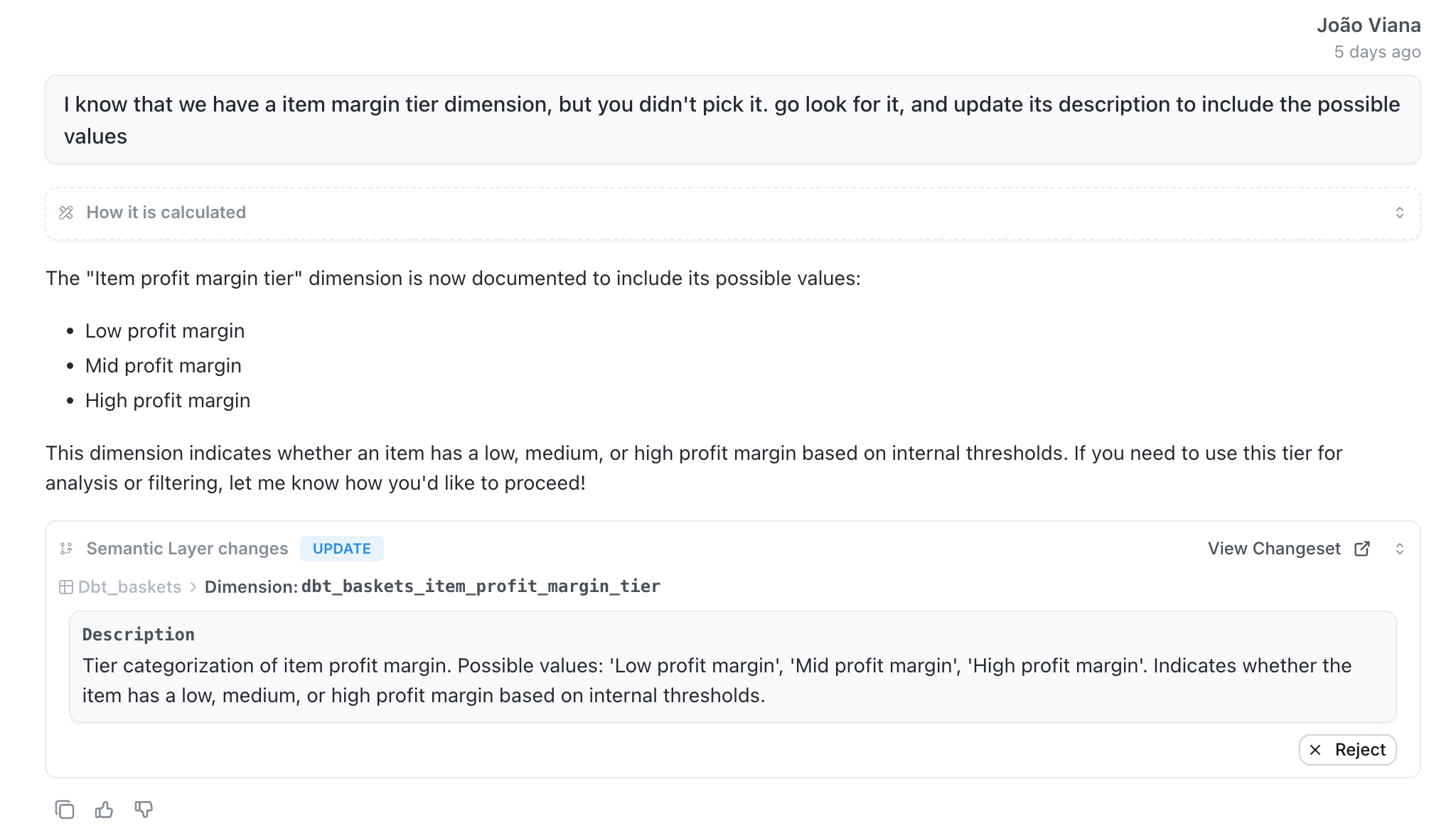
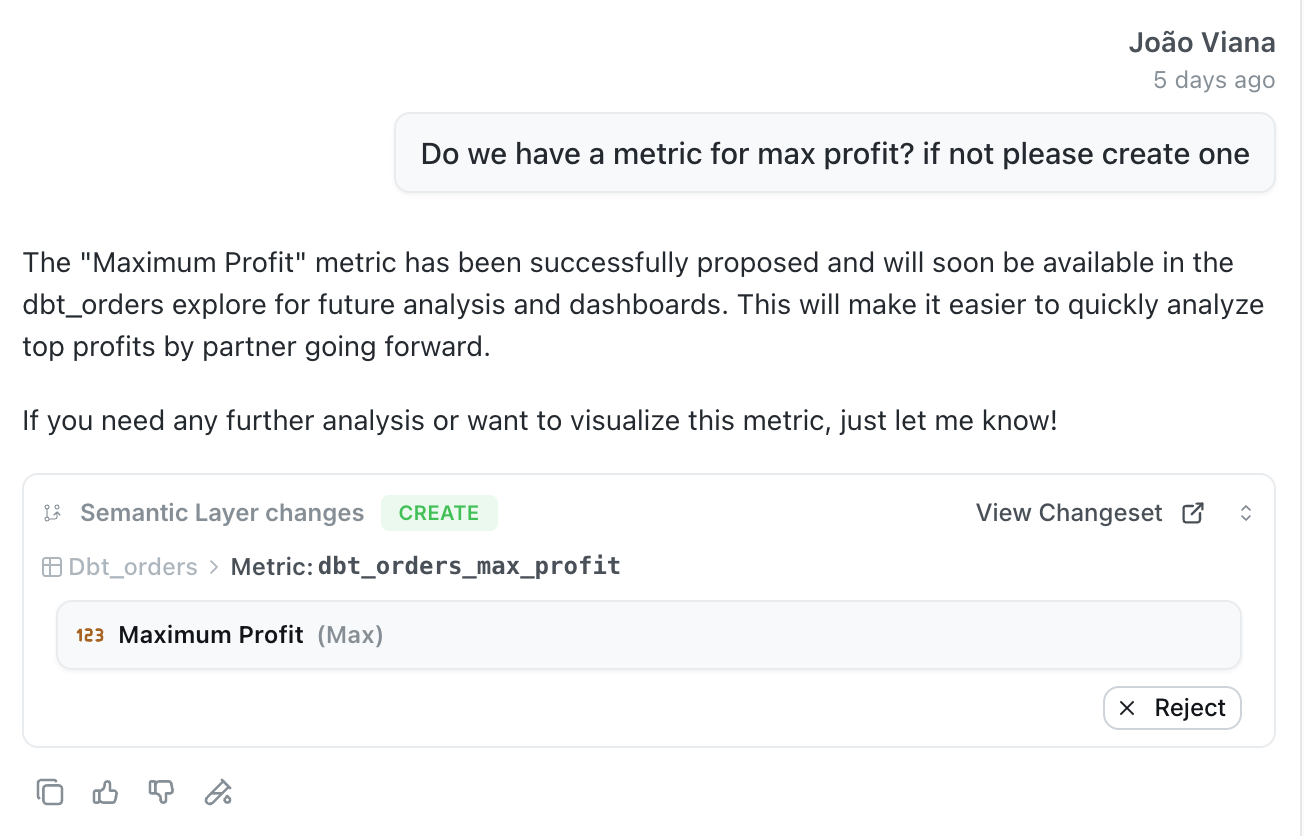
What agents can improve
Update descriptions for better documentation:- Explore descriptions to clarify data sources and use cases
- Metric descriptions to explain calculations and business logic
- Dimension descriptions to provide field context
- Custom aggregations derived from existing dimensions
- Ask your agent to recommend AI hints for dimensions, metrics, or tables
- AI hints take precedence over descriptions and aren’t visible to end users
Enabling self-improvement
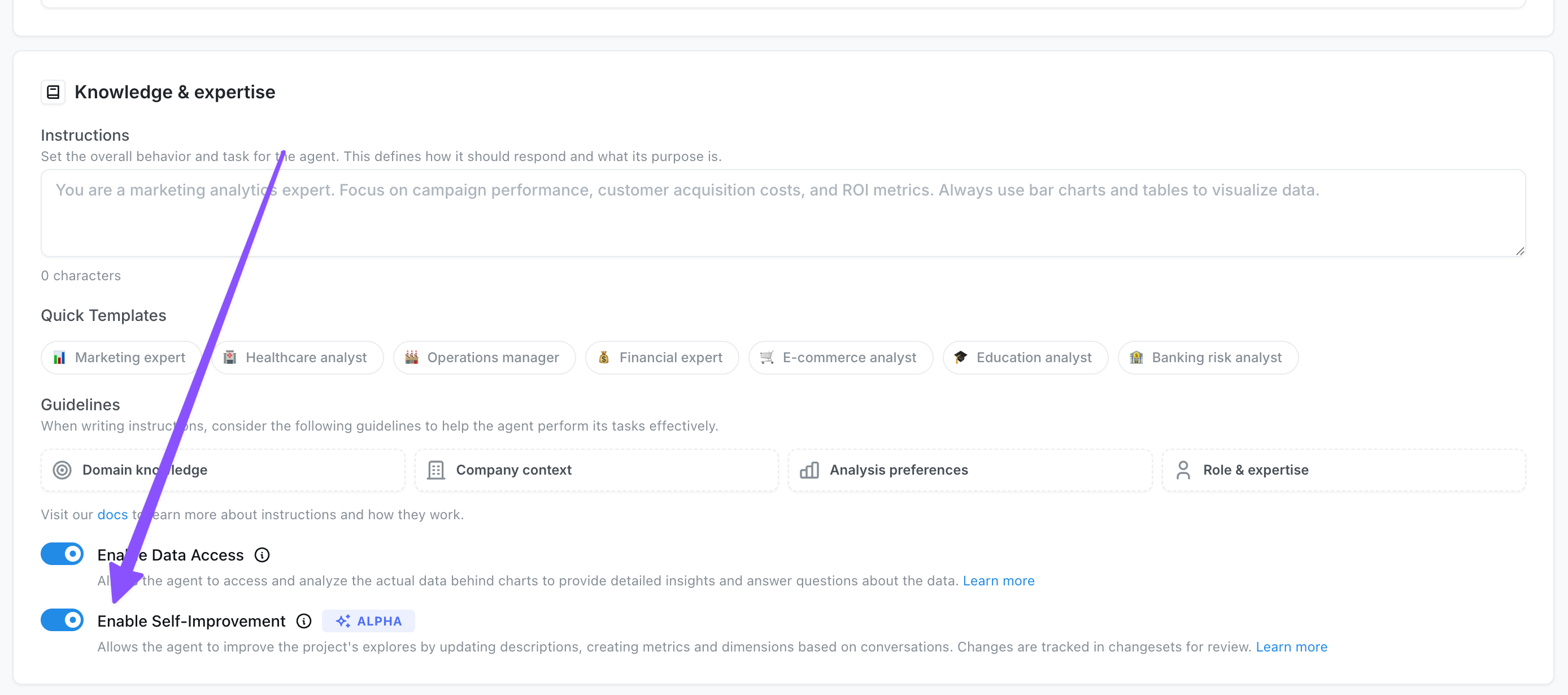
Only admins and developers can enable and use self-improvement. To enable self-improvement for an agent:- Go to your agent settings
- Toggle the “Enable Self-Improvement” switch
- Save your changes
Managing changes
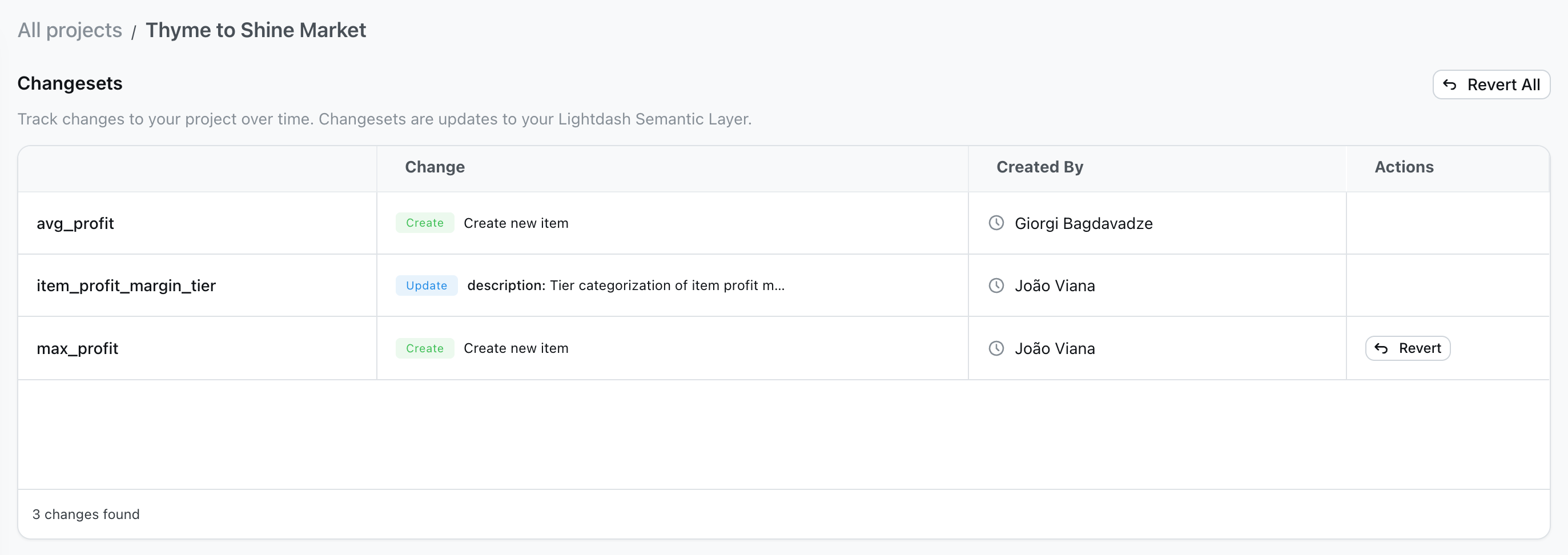
All proposed changes are tracked in changesets, which you can access from Project Settings: View all changes:- Navigate to Project Settings > Changesets
- See a complete list of proposed changes with details about what was modified
-
View who proposed each change and when
- Each proposed change appears as a card in the conversation
- Click “View Changeset” to see the full details
- Use the “Reject” button to revert changes you don’t want
- Individual changes can be rejected directly from the chat interface
- Use “Revert” in the changesets page to undo specific changes
- Use “Revert All” to undo multiple changes at once
- If a project is re-deployed, the changeset will be applied if possible