

Documentation Index
Fetch the complete documentation index at: https://lightdash-update-dbt-code-blocks.mintlify.app/llms.txt
Use this file to discover all available pages before exploring further.
What is Lightdash YAML?
Lightdash YAML allows you to use Lightdash without an existing dbt project. Instead of defining your semantic layer within dbt model YAML files, you define it directly in standalone YAML files that point to tables in your data warehouse. This approach lets you leverage Lightdash’s powerful features without needing to adopt dbt first.Why use Lightdash YAML?
Lightdash has always operated with dbt at its core. Traditionally, customers have active dbt projects, and Lightdash builds its semantic layer within that dbt context. However, not every team uses dbt. If you’re interested in Lightdash features like:- AI agents that can answer questions about your data
- A semantic layer with consistent metric definitions
- Self-service analytics for your business users
dbt vs Lightdash YAML: which should you use?
| Scenario | Recommendation |
|---|---|
| You already have a dbt project | Use the standard dbt integration |
| You’re planning to adopt dbt soon | Consider setting up dbt first, then connecting to Lightdash |
| You don’t use dbt and want to try Lightdash quickly | Use Lightdash YAML |
| You want AI agents or semantic layer features without dbt | Use Lightdash YAML |
| You have tables in your warehouse ready to explore | Use Lightdash YAML |
Getting started with Lightdash YAML
Prerequisites
Before you begin, make sure you have:- The Lightdash CLI installed
- Authenticated with Lightdash
- Credentials for your data warehouse (e.g., Snowflake)
- Tables in your warehouse that you want to explore
Step 1: Create your project configuration
At the root of your project, create alightdash.config.yml file to specify your warehouse type:
snowflake with your warehouse type (e.g., bigquery, databricks, redshift, postgres, trino).
Step 2: Create your first model
Lightdash YAML uses the same syntax as the Lightdash semantic layer in dbt, but instead of nesting everything undermeta tags, all configuration is at the top level of the file.
Create a directory structure for your Lightdash project:
./lightdash/models/users.yml:
- Set
sql_fromto the fully qualified name of your table (e.g.,DATABASE.SCHEMA.TABLE) - Update the dimensions to match the columns in your table
- Add metrics that make sense for your data
Step 3: Validate your YAML
Check your YAML files for errors by running:Step 4: Deploy your project
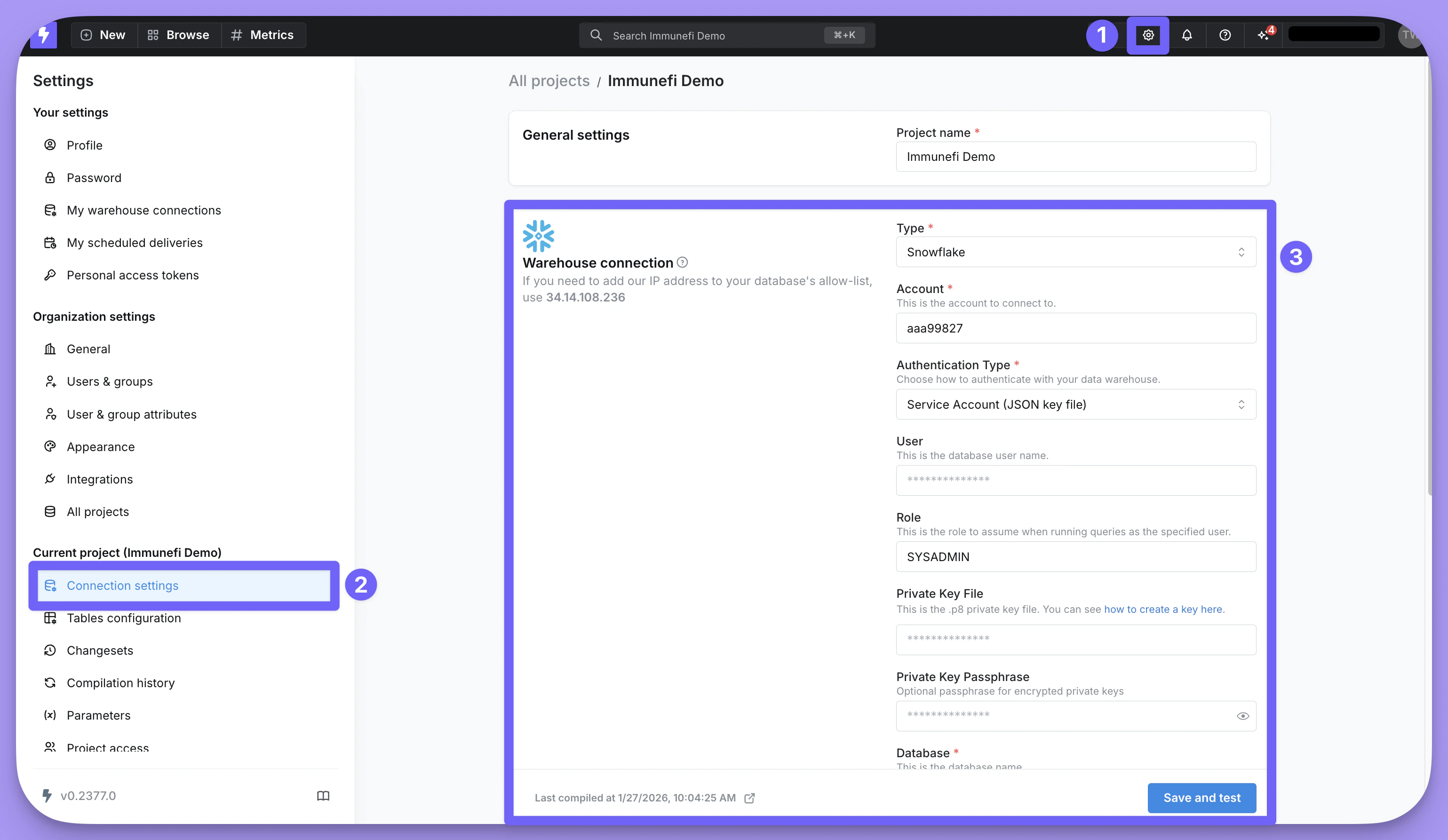
Create your Lightdash project by deploying with the CLI:--no-warehouse-credentials flag tells Lightdash that you’re deploying without warehouse credentials embedded in the CLI. After deploying, you’ll need to configure your warehouse connection in the Lightdash UI:
- Go to Settings (gear icon in the top right)
- Under Current project, click Connection settings
- Configure your Warehouse connection with your database credentials
Step 5: Update your project
After your initial deployment, you can edit your.yml files and redeploy changes:
Developing with AI copilots
If you’re developing with Cursor, Claude Code, Kilo Code, or another AI copilot, you can speed up your workflow significantly.Recommended setup
-
Provide the schema reference: Give your copilot this link to the Lightdash YAML format specification:
-
Use validation: Prompt your copilot to always run
lightdash lintafter making any changes to catch errors early. - Share your warehouse schema: Give your copilot access to your warehouse schema. This makes it very fast to generate YAML files that match your actual table structures.
Next steps
Once you’ve deployed your Lightdash YAML project:- Explore your data in the Lightdash UI
- Create metrics to define your key business calculations
- Set up AI agents to enable natural language queries
- Learn about the semantic layer reference for advanced configuration options